Configure a custom url and http port
In this chapter we’ll discuss how to configure Apache web server to redirect the homepage from http://owncloud_ip/owncloud/ to http://owncloud_ip:custom_port.
In this example we are going to be using the IP address 192.168.0.105 and tcp port 8080 (http://192.168.0.105:8080).
Table of contents
- Configure httpd to listen on port 8080
- Create a VirtualHost to redirect the homepage
- Allow port 8080 through the Firewall
- Next steps
Configure httpd to listen on port 8080
Backup the current /etc/httpd/conf/httpd.conf and change Listen 80 to Listen 192.168.0.105:8080.
cd /etc/httpd/conf/ && cp -p httpd.conf httpd.conf.bck && sed -i 's/^Listen 80$/Listen 192.168.0.105:8080/' httpd.conf
Save and close the file.
Create a VirtualHost to redirect the homepage
Paste the following on your terminal as root in order to create the VirtualHost:
vhost="/etc/httpd/conf.d/owncloud.conf"
/bin/cat <<EOF >$vhost
<VirtualHost 192.168.0.105:8080>
  ServerName owncloud.mylab.local
  DocumentRoot /var/www/html/owncloud
  ErrorLog logs/owncloud_error_log
  CustomLog logs/owncloud_access_log combined
</VirtualHost>
EOF
You may want to check if the syntax of the configuration is correct with the following command:
apachectl configtest
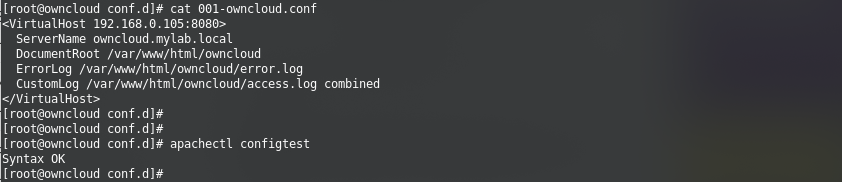
Now restart Apache to make these changes take effect.
systemctl restart httpd
Allow port 8080 through the Firewall
firewall-cmd --permanent --zone=public --add-port=8080/tcp
firewall-cmd --reload
Now you should be able to access your ownCloud server pointing your browser to http://owncloud_ip:8080 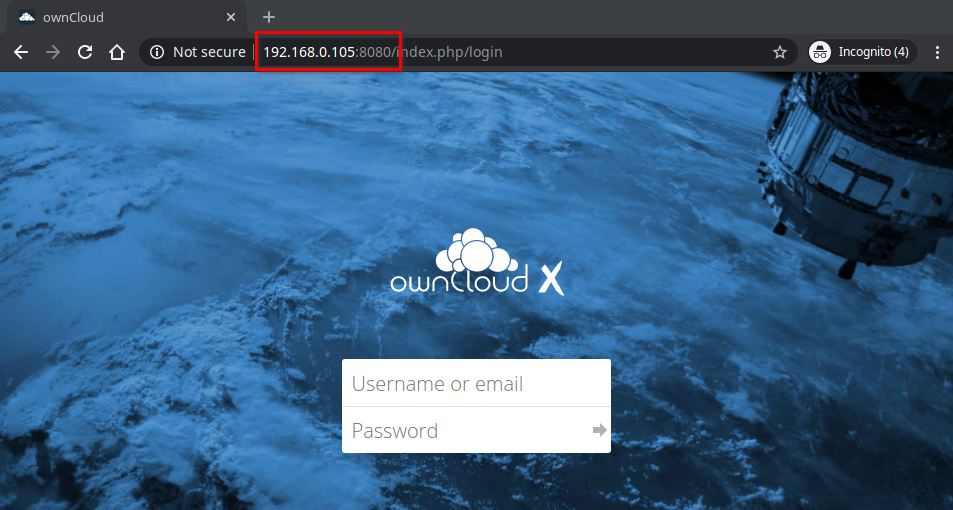
Next steps
To add a new user to ownCloud, see “Adding users”.